Fit a landscape image into a square without guessing
The chart is 1200 × 800 pixels. For a 600 × 600 canvas, Contain keeps the complete image; Cover removes part of the left and right edges; Stretch changes the shape of the circle. The two exports below use the same source and square canvas.
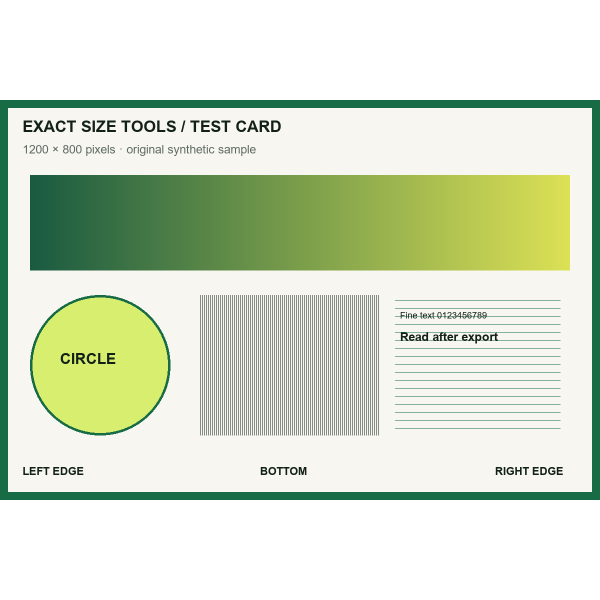
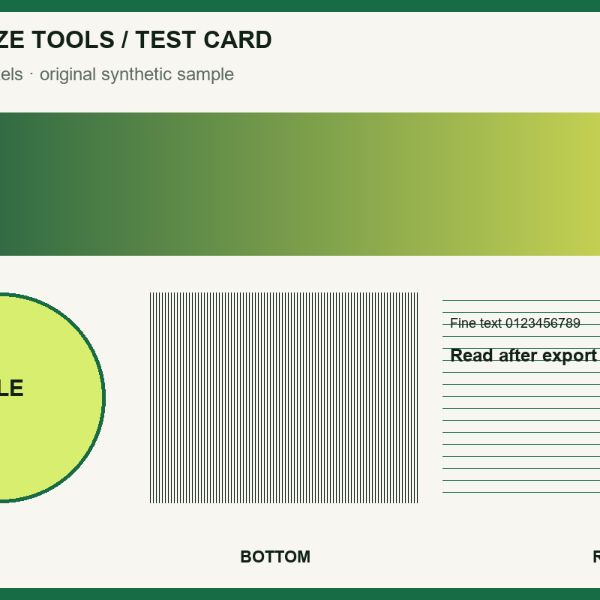
| Goal | Settings | Expected geometry |
|---|---|---|
| Keep the full landscape image at half size | Percentage: 50% | 600 × 400 px |
| Keep all content in a square canvas | 600 × 600; Contain | 600 × 400 content; 100 px bands above and below |
| Fill the square | 600 × 600; Cover | A central 800 × 800 source crop becomes 600 × 600 |
These exports were generated with this tool on 27 October 2026. A transparent PNG can keep blank areas transparent; JPG fills them with the chosen background.
Before you accept the download
- Inspect edge labels to see whether cropping removed useful content.
- Check the circle: it should remain round unless you intentionally stretched the image.
- If bytes are also limited, compress the resized file and check the dimensions again.
How it works
Three clear steps
- 01
Choose an image.
- 02
Enter pixel dimensions or a percentage and select a fit mode.
- 03
Preview the output measurements and download the resized image.
What this tool does
Resize from the original source with predictable aspect-ratio and background behavior.
How this result is produced
The tool calculates output pixels from the dimensions or percentage you enter, then applies contain, cover, or stretch behavior from the original image rather than from a previous export.
Practical example
For a 1,600 × 900 source in an 800 × 800 output frame, Contain scales the picture to 800 × 450 and leaves space above and below. Cover fills the frame but crops the left and right edges; Stretch fills it by changing the aspect ratio. Inspect the preview and choose according to whether preserving all content or filling the frame matters more.
Limits and troubleshooting
- Upscaling creates more pixels but cannot restore missing detail.
- Cover mode crops the source to fill the requested frame.
Use contain or cover if a stretched result changes the subject’s proportions. Extremely large requested dimensions can exceed mobile memory, so work from the original again with a smaller output rather than resizing an earlier export repeatedly.
Questions people ask
Which fit mode should I use?
Contain preserves the whole image, cover fills the frame by cropping, and stretch forces the exact dimensions without preserving proportions.