Change print density while keeping the same pixels
The source has a 96 PPI tag. The exported sample has a 300 PPI tag while retaining the same 1200 × 800 pixels. A pixel comparison of these two files is identical.
- Input
- 31,541 bytes
- Output
- 31,541 bytes
- Result
- 1200 × 800 px
Settings: Metadata-only mode; 300 PPI; use the PNG test card.
Download input · Download measured output
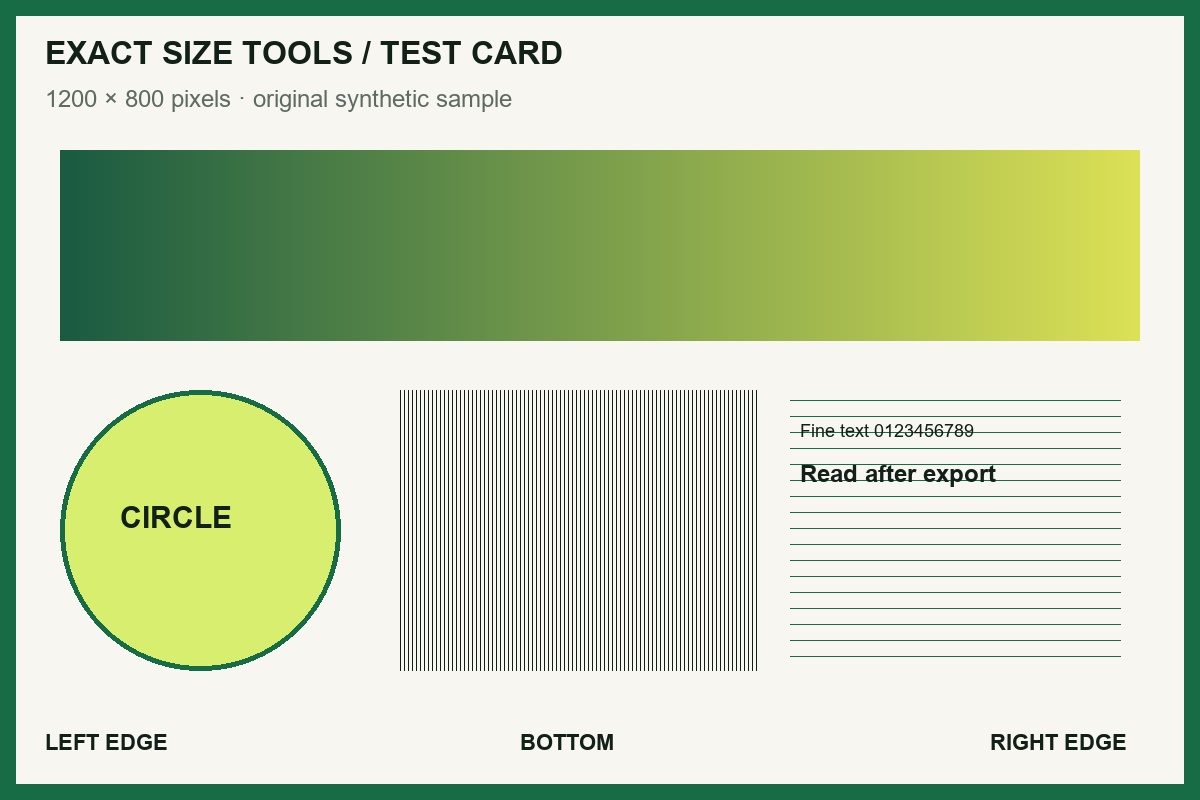
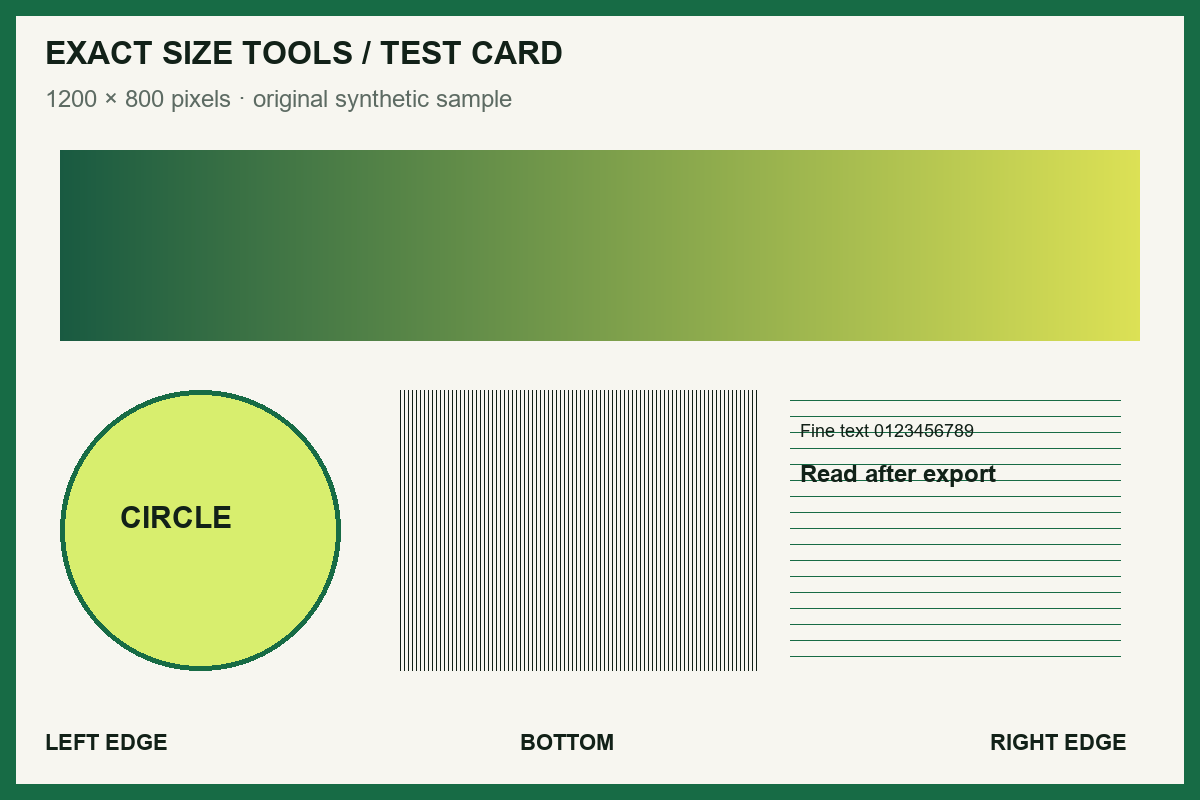
Measured with this site’s processing engine in Edge 156 on 27 October 2026. These are results for this sample, not promised sizes for other files. Browser encoders can produce different byte counts. How to repeat the examples
| Same 1200 × 800 pixels | Intended width | Intended height |
|---|---|---|
| 96 PPI | 12.5 inches | About 8.33 inches |
| 300 PPI | 4 inches | About 2.67 inches |
The image does not gain detail when its density changes. If a form needs 600 × 400 pixels, a density-only edit cannot satisfy that rule; use the pixel resizer. If it needs a physical size at a stated density, use the physical size resizer.
Before you accept the download
- Check both pixel dimensions before and after a metadata-only edit.
- Use a viewer that exposes density metadata; a browser’s display size does not prove the PPI tag.
- Metadata-only mode preserves other source data. It is not a metadata-removal or privacy-cleaning operation.
How it works
Three clear steps
- 01
Choose an image.
- 02
Select metadata-only or a pixel-resampling mode.
- 03
Set the PPI and process the file; review whether pixel dimensions changed.
What this tool does
Choose between editing a density tag and resampling to entered pixel dimensions.
How this result is produced
Metadata-only mode changes density information where the output format supports it. Resample and upscale modes instead use the pixel width and height you enter; use the physical-size resizer to calculate pixels from millimetres, centimetres, or inches.
Practical example
A 1,200 × 1,800 image remains 1,200 × 1,800 pixels when only its 72 PPI tag becomes 300 PPI; at 300 PPI those pixels describe a 4 × 6 inch print. Resampling for a different requested print size changes the pixel grid. Neither method can recover detail that the original never captured.
Limits and troubleshooting
- Metadata-only changes do not create detail.
- WebP density metadata is not standardized in this workflow, so WebP uses resampling modes only.
If another program still reports the old density, it may be ignoring the new metadata. Use a resampling mode when the receiving workflow needs a specific pixel count, and lower the requested dimensions if the browser runs short of memory.
Questions people ask
Will setting 300 DPI improve a blurry image?
No. A metadata-only change affects how physical size may be interpreted. Upscaling adds pixels but cannot reconstruct detail that was not captured.